 Community Magazine

Forms are a major area in accessibility testing, and ensuring they are fully accessible is essential. Clicking the wrong link on a website might be annoying, but submitting a credit card number in a text field to the wrong recipient can be costly and may even end up in court.
In Joomla, fields and labels are generated correctly as control groups. However, when we install extensions or craft a form manually, we need to verify that everything is implemented properly without accessibility issues.
The question is: Can we rely on the accessibility checkers to find all accessibility issues?
The relevant WCAG 2.1 rules in this article are:
- 1.3.1 Info and Relationships: Information, structure, and relationships conveyed through presentation can be programmatically determined or are available in text.
- 3.3.2 Labels or Instructions: Labels or instructions are provided when content requires user input.
Everything mentioned in former articles in the “Blind Spots of Accessibility Testing Tools” serie is valid also here. Colour contrast, focus, tab order and buttons are relevant in forms.
You can find those articles here: Focus and Buttons.
The accessibility testing tools used for this article are: Wave, IBM Accessibility Checker, AXE, Web Developer Tools, our built-in accessibility checker JOOA11Y and the screen reader NVDA.
Web Developer Tools support testing of forms with different features:

Label and Field
One of the most common a11y issues are missing labels, mostly for search input fields. Sighted users have no problem to understand that a magnifier class means "enter your searchword here" but assistive technologies however need the <label>.
All testing tools wave the red flag when they find a input field without label or orphaned labels. A label can be kept invisible for sighted users, but it must be there and - this is the important - it must be associated with the field. If this is not the case it cannot be used by assistive technologies.
(For the protocol: with ARIA it is possible to make a field accessible also without <label> but it is not best practice).

This is a simple form and a label / input pair is written as:
<label for="lname">Last Name</label><input id="lname" type="text">
When the label is not associated with the input field sighted users don't see a difference, but it is an accessibility issue. Blind users would not be able to figure out which field expects which data to be entered.
<label>Last Name</label><input id="lname" type="text">
For the test of labels to input fields association we can trust the automatic testing tools (except for swapped IDs).
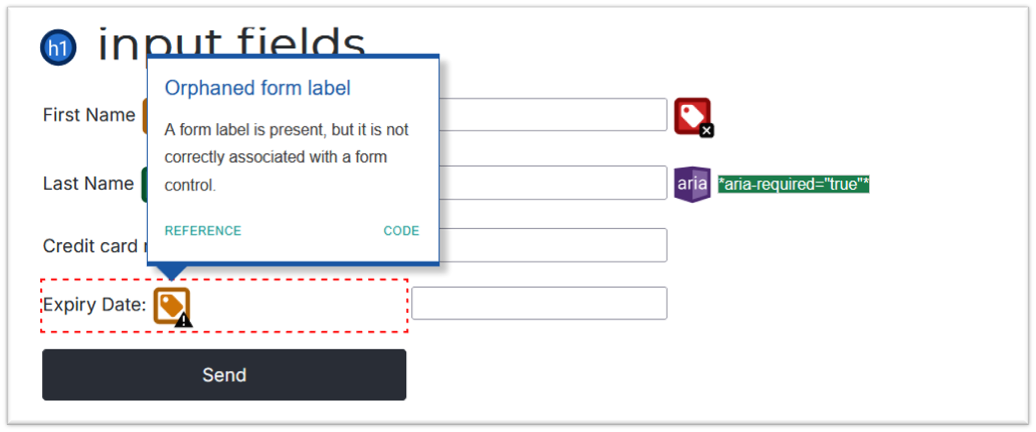
In the following screenshot it is WAVE who detects two errors: a missing label and a orphaned label and all other tools say the same.
Mandatory and optional fields
Do you see that in the form above the "last name" field is required?
<label for="lname">Last Name</label><input id="lname" type="text" required="true">
In fact, this is one of the rare situations where blind users have an advantage: A screen reader announces that the input is required. For sighted users this requirement is not recognisable. No automated tool checks whether fields are indicated as required or optional, and WCAG 2.1 does not provide a specific rule or requirement for this.
Typically, labels for required fields are marked with an (aria-hidden) asterisk (*) or a text "(required)" but it is a convention, not a rule.
In WCAG 2.1 this is described very well as technique H90.
No accessibility checker can find out if all required fields are inidcated or described correctly.
Placeholder
Using placeholders in input field is not an a11y issue per se, it can enhance the user experience, but from accessibility point of view it is not best practice, as described in the WCAG tutorial for form instructions.
Placeholders disappear when the user starts typing which hides some information. NVDA announces the placeholder when the field gets the focus and only if there is no label, other screen readers may act differntly.
Accessibility testing tools do not care about the placeholder (except JOOA11Y which shows a warning).
The screen here shows an example. The first Expiry Date label shows the expected input format directly in the label, the second field uses a placeholder, which generates a warning of Jooa11y. 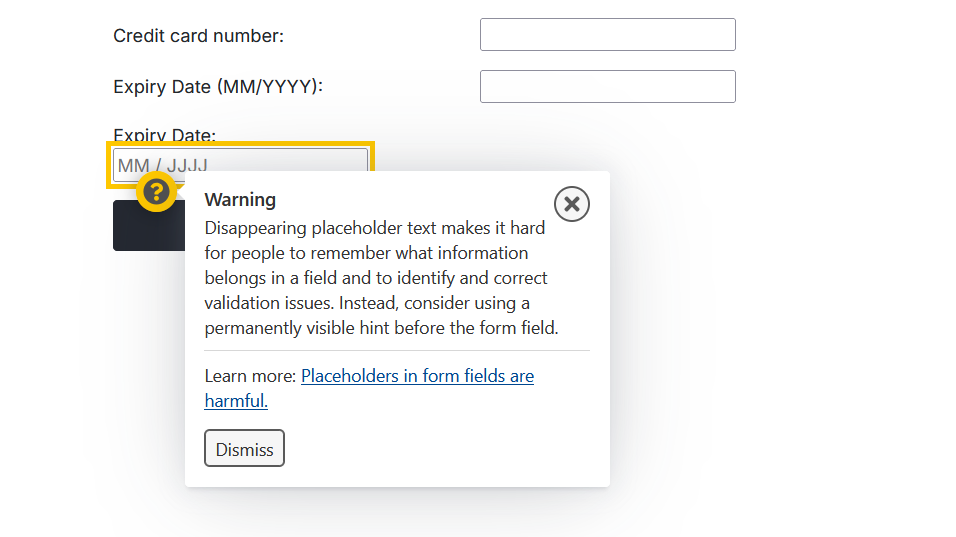
Autofocus
Autofocus is evil from accessibility point of view. For screen reader users it means, that a part of the information on a site, including the label of the field, is skipped. In worst case, this could result in a focus trap for keyboard users.
All testing tools ignore the autofocus attribute, which surprised me. I supposed that this would be detected in every scan.
Conclusion
Forms come with plenty of potential pitfalls. Accessibility tools may advertise detection rates of up to 50%, but at the end of the day 30% feels far more realistic.
If you’re using Joomla!, there’s no need to worry. The Joomla development team knows these traps inside out. When you stick to “just Joomla!”, none of the problems mentioned in this article make their way into your forms.

Comments