 Community Magazine
Moving your website from one CMS to another is often seen as a daunting task. For many site owners who start with WordPress but want the flexibility, power, and community of Joomla, the thought of re-creating every article, menu, and media file by hand can feel overwhelming.
That’s why we built the CMS Migration extension (developed during Google Summer of Code 2025). It gives you a practical, user-friendly way to bring your WordPress content into Joomla—categories, articles, media, menus, and more—without starting from scratch. In this article, I’ll walk you through how it works, show you a real example, explain what’s possible today and what’s coming next, and how to configure a new CMS to migrate.
Moving your website from one CMS to another is often seen as a daunting task. For many site owners who start with WordPress but want the flexibility, power, and community of Joomla, the thought of re-creating every article, menu, and media file by hand can feel overwhelming.
That’s why we built the CMS Migration extension (developed during Google Summer of Code 2025). It gives you a practical, user-friendly way to bring your WordPress content into Joomla—categories, articles, media, menus, and more—without starting from scratch. In this article, I’ll walk you through how it works, show you a real example, explain what’s possible today and what’s coming next, and how to configure a new CMS to migrate.
The tool currently supports migrating these types of content from WordPress into Joomla (using the web services APIs):
-
Categories
-
Media
-
Tags
-
Articles (posts & pages)
-
Custom fields
-
Menus
-
Users
This covers the most important parts of a WordPress site.
Getting Started
1. Install the Migration Extension
Download and install the CCM Migration extension from the Joomla extensions manager.
Once installed, you’ll find a new menu item in your Joomla administrator:
👉 Components → CMSs
2. Set Up Your CMSs
Go to CMS Management, add or edit the source and target CMSs you want to migrate, then save the data. Here are examples of my data for WordPress and Joomla:
For WordPress, CMS Name: WordPress
CMS URL: https://wptest.yepr.nl
Credentials: username:password

For Joomla:
Even if you are migrating to the same Joomla instance, you still need to fill it, and preferred to be a new, clean Joomla instance.
CMS Name: Joomla
CMS URL: https://pbf1.infotech.ch
Credentials: joomlaToken

3. CMSs Migration
Go to Migration, choose WordPress as the Source CMS, and Joomla as the Target CMS. Click Apply Migration and let the magic happen!

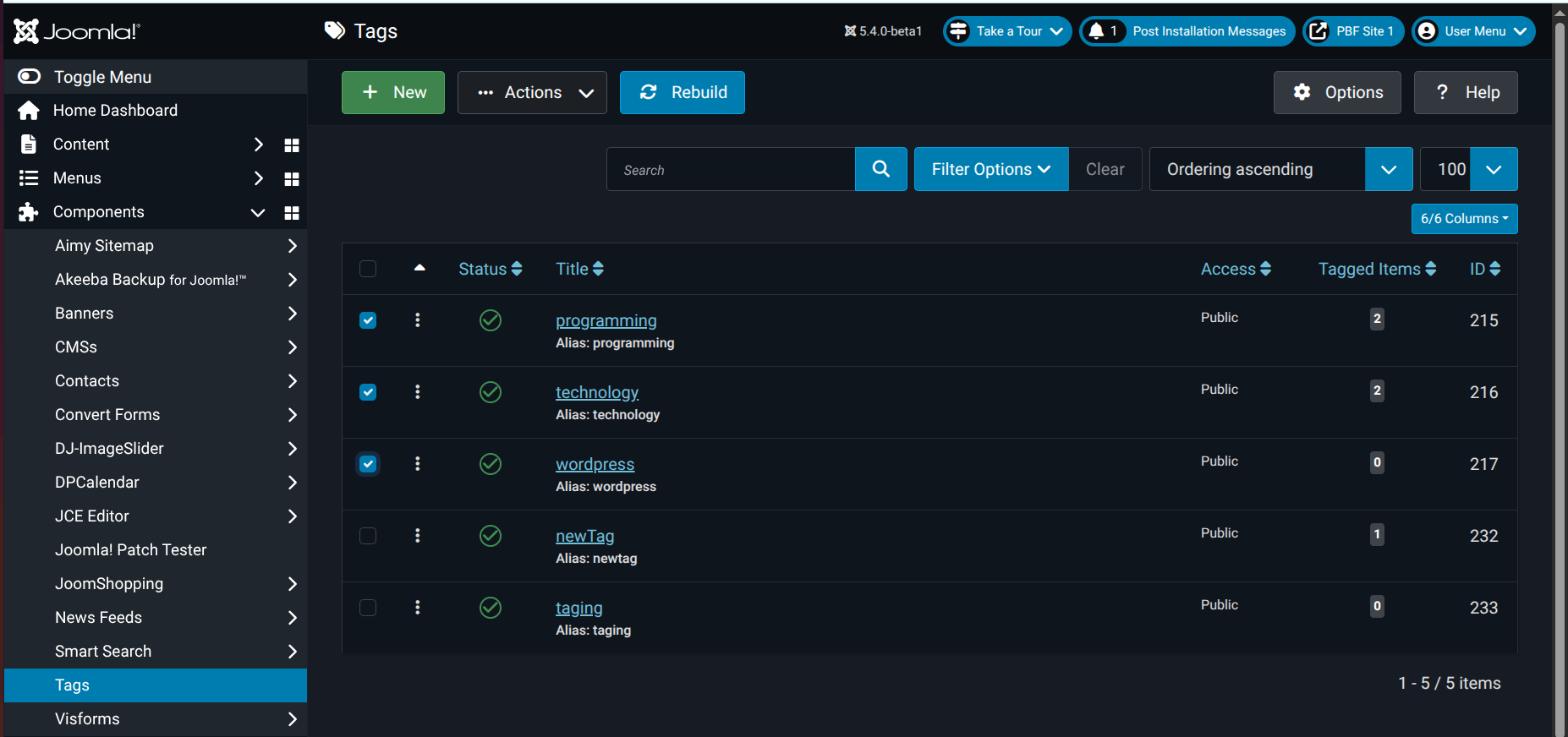
Check the migrated data, from WordPress to Joomla, as follows:
Users


Tags

Categories


Media
Media are migrated to the "files" folder. The migration process creates a "migration" folder and another folder is created inside it with the name of the source CMS. Each time the migration is applied, a folder with the current date is created with all the media files.


Articles
WordPress has Posts and Pages; both are migrated to Articles in Joomla.


Menus
I have three menus, which I will display with their items in both WordPress and Joomla.


Limitations
-
Menus & Menus-items are migrated from wordpress.com, but other WordPress hosts may encounter issues stating that it is forbidden to retrieve the data for them.
-
In wordpress.com, we can retrieve the user’s email, but for the latest WordPress releases, we can’t retrieve the email, and it is mandatory to create users. So, the migration now adds a dummy email when it doesn’t exist
-
Comments in WordPress aren’t migrated as Joomla doesn't have comments.
-
WordPress can have multiple categories, while Joomla uses a single category per article. The migration process only migrates the first category attached to the post in WordPress.
-
Duplicate entries can cause failure of all migrations. Prefer to apply the migration to a new Joomla website.
Future Work
-
Supporting Joomla-to-Joomla migration.
-
Migrate Comments into Custom Fields.
-
Have the JSON configuration file produced by a form in the UI.
Configuring CMSs in UI
In Joomla Admin, go to Components > CMSs > CMS Management
-
Choose one of the CMSs
-
Update/Add the CMS details:
Name: Descriptive name for the CMS
URL: Base URL of the source CMS
Credentials: API keys or authentication details. Follow the next steps to get the credentials.
Credentials
For WordPress
Generate Application Password:
In your WordPress site:
-
Go to My Sites → Settings → Security
-
Scroll down to Application Passwords
-
Click Create New Application Password
-
Enter name: "CMS Migration" or any preferred name
-
Copy the generated password
-
In CMS Management, choose "WordPress"
-
We need the username and the password.
-
Add them to the WordPress “Credentials” like this: name:password
For Joomla
Create API Token:
In your Joomla site:
-
Go to System > Manage > API Tokens
-
Click New to create a new token
-
Enter a Title for the token
-
Select an appropriate User (should have the necessary permissions)
-
Click Save
-
Copy the generated token
-
In CMS Management, choose "Joomla"
-
Add the generated token in “Credentials”.
Configuring CMSs in the Code
If your CMS is not already included in the provided JSON files(Joomla and WordPress only included for now), you can still make it work by creating your own configuration. Each CMS is defined in a JSON file that describes its content types (such as articles, categories, media, and users) and maps them to the Common Content Model (CCM). To add a new CMS, simply create a JSON file called “cms-ccm.json” and replace the “cms” with the exact name of the CMSs defined in the UI. Add the JSON file in the following directory: “gsoc25_api/src/administrator/components/com_ccm/src/Schema”.
In the JSON file, define the type (e.g., articles, categories), the endpoint where data can be fetched, and the property mappings between the CMS fields and the CCM fields. Give the property a format if it needs complex mapping, not a direct one. Refer to joomla-ccm.json for a real mapping example.
With this new migration tool, bringing the WordPress site into Joomla becomes a matter of a few clicks, with the saving of the data, instead of the manual work.
If you migrate a WordPress site to Joomla, now is the perfect time to try it out. Install the extension, connect your WordPress site, and see your content come alive in Joomla. And this is only the beginning—future improvements will make migrations even more powerful and flexible.
👉 Give it a try, share your feedback with the Joomla community at https://github.com/joomla-projects/gsoc25_api/issues, and help shape the future of content migration!
Comments