 Community Magazine
Case study: Migrating vehicles ads from EXP AutosPro to DJ-Classifieds using DJImporter

About 10-12 years ago, the owner of a car news website, built with Joomla, needed to create a classified adverts section where private individuals or care dealerships could post vehicles for sale. For this, we purchased a commercial component called EXP AutosPro, which made it possible to build a full-fledged automotive classifieds system.
This component allowed for separate configuration of categories, car makes and models, colors, body types, interior options, availability of additional equipment, and more. All of this data was stored in separate tables within the database. We even tried enabling classifields for tyres and spare parts through the same component.
However, times change. Joomla 3 is now outdated and needs to be upgraded. The biggest obstacle to switching to a newer Joomla version turned out to be is EXP AutosPro. The component is now out of date and not maintained for newer Joomla versions. While I was writing and editing this article, even the link to this component on extensions.joomla.org was deleted, since the component was last updated in 2019 and support only Joomla 3. Now i have only a screen from WebArchive.

Searching for Alternatives
We began looking for a modern component with similar functionality. A search for “vehicles” on the Joomla Extensions Directory led us to a few options:
- EXP Auto — but it's only compatible with Joomla 3;
- AutoStand — compatible with Joomla 3,4,5;
- DleJAuto — compatible with Joomla 3,4,5;.
However, we needed something that could integrate with YOOtheme Pro templates, support the frontend submission of ads from users, and include powerful filtering and search modules.
A key requirement was the ability to import existing ads (via CSV or XML), as well as a flexible category structure and custom fields. So that in the future we could expand beyond just passenger cars.
Choosing DJ-Classifieds
While working on a completely different project, I came across DJ-Classifieds, and its demo site happened to be focused on car listings. I figured it could be a good fit for our needs — though it would require a deep dive to set up properly.
A quick note: as of now, DJ-Classifieds works on Joomla 5 only with the backward compatibility plugin. Hopefully, the developers will eventually update it to the new codebase, like they did with DJ-Catalog2.
DJ-Classifieds comes bundled with a component called DJ-Importer, which allows importing data directly into its database. It's important to mention that there's no official documentation for it, and developer consultations are paid. For more complex scenarios, that could come in handy — but since I had no strict time constraints, I decided to figure things out myself as much as possible.
Potential Challenges and Action Plan
One major challenge is planning the hierarchy structure for the classifieds. By that, I mean something like:
Vehicles → [Passenger Cars, Trucks, Buses, Motorcycles, Tractors] → Make → Model
The rest of the parameters — like color, engine volume, etc. — can be handled using custom fields. You can either implement this hierarchy using nested categories (e.g., Vehicles → Make → Model), or make Make and Model interdependent custom fields.
Another challenge during import is that all the values in the old data are stored as numeric IDs. We’ll need to map these numbers to readable text values because DJ-Classifieds custom fields store the actual values, not the IDs. The most difficult part will likely be properly importing car makes and models.
Action Plan
- Understand how data import works in DJ-Importer.
- Run a test import using a demo file to verify the system behaves correctly.
- Export data from the old component, creating a working XML file with listings.
- Test import with real data, and start adding the required custom fields.
- Handle tricky parts — like mapping text values for makes/models, and importing multiple images (there could be 10–20 per car).
- Once all listings are imported, design the frontend template and submission form.
Connecting XML in DJ-Importer
In DJ-Importer, we start by creating an import group.
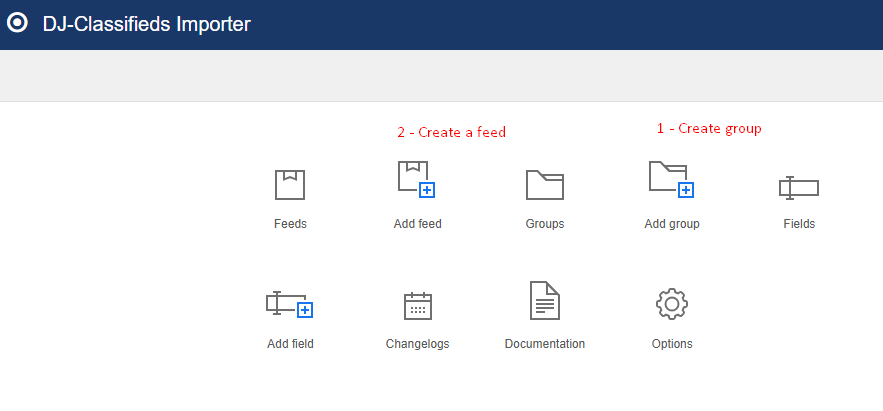
Next, we create a Feed (import stream), where we specify a name, select the group, and define the path to the XML file (I placed the file in the root directory of the website).

Clicking Save at this point won’t do much yet — hitting the Import button will likely only bring in basic data, without any custom fields.

Configuring Import Fields
To properly map the XML data to fields in DJ-Classifieds, you need to:
- Create the corresponding Custom Fields in DJ-Classifieds;
- Create import fields in DJ-Importer, matching them by name, type, and association.
Example: Let’s take the bodytype field as an example to see how this works in practice. In the exported XML, the values are represented like this <bodytype>7</bodytype>.
First, we create a matching custom field in the DJ-Classifieds component. The most important part here is to define the values correctly.
In EXP AutosPro, values like body types are stored in a separate reference table, and in the exported XML file, we only get numeric IDs. So, we need to map those IDs to readable values manually.
This format worked perfectly — the importer was able to assign the correct body types automatically: 1|Sedan;2|Hatchback 5-door;
To define these, use the following syntax:
- Start with the numeric ID,
- Followed by a vertical bar (|) with no spaces,
- Then the text value,
- Separate entries with a semicolon (;).
If you start the value string with a semicolon, it will create an empty option at the top of the dropdown list. This is useful if you want the default value in the body type field (or any other) to be blank — instead of, say, “Sedan” appearing by default.
So the full definition might look like this: ;1|Sedan;2|Hatchback 5-door;
This way, users are encouraged to make an active selection rather than relying on a pre-filled value.

Сreating and mapping field in DJ-Importer:
- Field name: bodytype
- Source field: bodytype (from the XML file)
- Destination field type: Custom Field in Category
- Target field: select the bodytype field you previously created in DJ-Classifieds

Additionally, you’ll need to create and map the following fields:
- catid — the category (e.g., Vehicles)
- makename — the car make (e.g., Toyota)
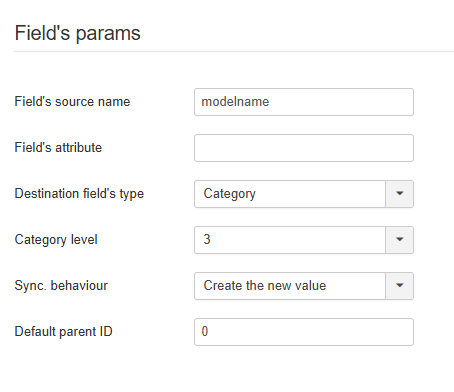
- modelname — the car model (e.g., Corolla)
Each of these must be properly linked to ensure accurate classification of listings.
For now, I decided to set them up as second- and third-level categories. You can see an example of this structure in the screenshots below.
 |
 |
 |
You can also go ahead and create additional fields such as color, transmission type, engine volume, fuel type, and others.
These should be created both in DJ-Classifieds (as custom fields) and in DJ-Importer, where they must be properly mapped and linked.

Preparing XML Export from EXP AutosPro
Fortunately, EXP AutosPro has a built-in feature for exporting listings to XML, which turned out to be very helpful.
However, in the exported file by default, instead of readable text values (like “Sedan” or “White”), we only got numeric IDs, which correspond to entries in separate database tables. To ensure a proper import, we had to manually map these IDs to human-readable values.

Issue: Missing Titles, Brands, and Images
After the first import attempt, the listings did appear — but they had no title (since it wasn’t included in the XML file), the make and model were shown as numeric IDs, and images were missing altogether. So we had to modify the default export file and turn it into a custom version.
Modifying the Export in EXP AutosPro
Our export file is located at: administrator/components/com_expautospro/models/export.php
We begin making changes around line 60. Here’s what we add:
- Make and model names as separate fields;
- A combined nameauto field, which merges the make and model into one readable title;
- An <images> block that includes the filenames of all related images.
public static function exportxml($name, $where = '') {
        $doc = new DOMDocument('1.0', 'UTF-8');
        $doc->preserveWhiteSpace = false;
        $doc->formatOutput = true;
        $root = $doc->appendChild($doc->createElement('expautospro'));
        $root->setAttribute('database', $name);
        $db = JFactory::getDBO();
        $query = "SELECT a.*, mk.name AS make_name, md.name AS model_name
                  FROM jos_expautos_admanager a
                  JOIN jos_expautos_make mk ON a.make = mk.id
                  JOIN jos_expautos_model md ON a.model = md.id AND md.makeid = mk.id " . $where;
        $db->setQuery($query);
        $ads = $db->loadObjectList();
   // Example: adding nameauto, makename, and modelname
        foreach ($ads as $ad) {
            $r = $root->appendChild($doc->createElement('ad'));
            $nameauto = trim($ad->make_name . ' ' . $ad->model_name);
            $make_name=$ad->make_name;
            $model_name=$ad->model_name;
            $f = $r->appendChild($doc->createElement('nameauto'));
            $f->appendChild($doc->createTextNode($nameauto));
            $f = $r->appendChild($doc->createElement('makename'));
            $f->appendChild($doc->createTextNode($make_name));
            $f = $r->appendChild($doc->createElement('modelname'));
            $f->appendChild($doc->createTextNode($model_name));
       foreach ($ad as $key => $val) {
           if ($val !== NULL && $key !== 'make_name' && $key !== 'model_name') {
                    $f = $r->appendChild($doc->createElement($key));
                    $f->appendChild($doc->createTextNode($val));
                }
            }
// Add images at end of  <ad>
        $images = $r->appendChild($doc->createElement('images'));
       // Query to images table
       $imgQuery = "SELECT name FROM jos_expautos_images WHERE catid = " . (int)$ad->id;
        $db->setQuery($imgQuery);
        $imgList = $db->loadColumn();
        $baseUrl = 'https://site.org/media/com_expautospro/images/big/';
        if (!empty($imgList)) {
            foreach ($imgList as $imgFile) {
                $img = $images->appendChild($doc->createElement('image'));
                $img->appendChild($doc->createTextNode($baseUrl . $imgFile));
            }
        }


        }
DJ-Importer requires the full image path, so it’s important to specify the complete URL — not just the file name.
<images>
  <image>https://example.com/images/1.jpg</image>
  <image>https://example.com/images/2.jpg</image>
</images>
Result
After applying the changes:
Titles and car makes are now displayed correctly.
Images are successfully imported.
Fields are working — as more are configured, additional listing details become visible.

You can gradually expand the list of imported parameters — starting with essential ones like body type, color, and fuel type, and then adding the rest as needed.

As shown in the screenshot, the component correctly interprets the custom field values, but in the database, it still saves only the numeric ID (the first part of the value). As a result, when you try to display these fields (e.g., color or body type) using dynamic data in YOOtheme Pro, you’ll just see the raw numbers instead of readable labels.
To solve this, you might consider enabling the “Values as language constants” option when creating the field. (“Replace field's values with language constants (with 'COM_DJCLASSIFIEDS_' prefix) allowing to translate them. This can override the global 'Custom fields values as language constants' param.”)
Another approach is to append your own variable name to each numeric value during XML export — then define and override that variable in the component’s language file.
Another approach I considered — instead of using nested categories for car makes and models — is to take advantage of the fact that we now have text values for both in the exported XML.
This means we can try setting them up as custom fields instead.
- Make can be a single dropdown field containing all available car brands.
- Models, however, would require creating a separate custom field for each make, and linking each model field only to its corresponding make.
This is only possible if you enable the DJ-Classifieds Conditional Fields plugin — but once it's active, it allows for dynamic field dependencies, where the list of models updates based on the selected make.
Yes, it adds a bit more setup work, but it opens the door for more flexible use of the data. For example, this structure can easily be reused when listing spare parts, where linking parts to specific makes and models becomes much more intuitive.
Resuming
Of course, this article doesn’t cover every secret or edge case — every migration project is unique, with its own quirks and challenges. But I hope this breakdown helps you better understand how to approach migrating listings from a legacy Joomla 3 component like EXP AutosPro to a more modern and flexible solution like DJ-Classifieds.
The process took some digging, trial and error, and patience — but the result was a clean, structured system with a working import flow, translated values, and compatibility with YOOtheme Pro. Once everything was in place, the final listings looked great, and the frontend submission form integrated smoothly into the site's design.
If you're planning a similar migration, don't be afraid to experiment, test, and tweak the flow to suit your data model. And most importantly — take the time to understand how your old system stores data. That insight will save you a lot of headache when building the bridge to your new setup.
Some articles published on the Joomla Community Magazine represent the personal opinion or experience of the Author on the specific topic and might not be aligned to the official position of the Joomla Project
About the author

By accepting you will be accessing a service provided by a third-party external to https://magazine.joomla.org/
Comments