 Community Magazine

When managing a website, content changes are inevitable. Articles get updated, pages evolve, and information needs to stay current. But what happens when you need to undo a change or review who edited what? That’s where content versioning in Joomla comes in.
Content versioning is a feature that automatically saves multiple versions of your Joomla articles every time they’re edited. This means Joomla keeps a detailed history of changes, including who made them, when, and what was changed. You can then restore a previous version at any time with a single click.
New in Joomla 6
Content versioning has been enhanced with the release of Joomla 6 and it now includes the history of changes to custom fields and tags.
Why Content Versioning Matters
Peace of Mind
Made a mistake while editing an article? No worries. You can easily roll back to a previous version without losing important content.
Accountability and Transparency
If multiple authors contribute to your site, versioning helps you track who made each change and when. This is especially useful for editorial teams and large organizations.
Experimentation Without Fear
Want to test different headlines or layouts? You can do so confidently knowing older versions are saved and can be restored at any time.
Regulatory and Documentation Compliance
For industries where maintaining content history is mandatory (e.g., education, government, healthcare), versioning helps you comply with record-keeping standards.
Streamlined Collaboration
Editors, writers, and admins can work together more effectively by reviewing and comparing versions before publishing updates.
How to Enable and Use Content Versioning in Joomla
Step 1: Enable Versioning (it's enabled by default)
- Log in to your Joomla Administrator panel.
- Navigate to Content → Articles → Options.
- Under the Editing Layout tab, find Save History.
- Set Save History to Yes.
- Define the Maximum Versions to keep (e.g., 10 or 20).
- Click Save & Close.
Tip: Once the limit is reached, Joomla automatically deletes the oldest versions to save space.
Step 2: Create or Edit an Article
- Go to Content → Articles.
- Create a new article or edit an existing one.
- Each time you Save, Joomla automatically creates a new version.
Step 3: Access and Manage Article Versions
- While editing an article, click the Versions button in the toolbar.
- A list of saved versions appears, showing:
- Date and time
- Author
- Version note (if provided)
- From this screen, you can:
- Preview any version.
- Compare versions to view differences.
- Restore a previous version.
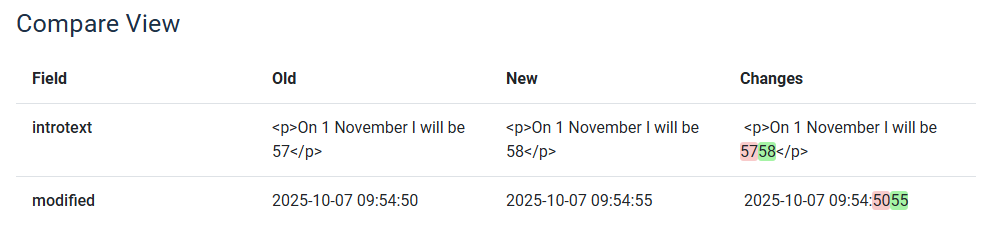
When comparing versions the tool highlights changes between versions:
Green text = Added content
Red text = Removed content
This visual difference makes it simple to track exactly what’s been modified over time.
Step 4: Use Version Notes for Clarity
Before saving an article, use the Version Note field to describe your changes. This makes it easier to find the right version later especially when there are significant changes.

Step 5: Keep Forever
As there is a maximum number of versions that are kept it is possible on a heavily edited article that you will "lose" some revisions. To prevent losing a version with significant changes you can mark that version as "keep forever". Any version marked in this way is kept in addition to the maximum number of versions already defined. Used together with Version Notes this can ensure that you will always be able to find and restore/compare significant changes.
- While editing an article, click the Versions button in the toolbar.
- A list of saved versions appears
- Select a version and then Keep On from the toolbar

Conclusion
Joomla Content Versioning is one of the most powerful and underused features in Joomla’s CMS toolkit. It gives you complete control over your content history, promotes collaboration, and ensures you never lose valuable updates again.
Start using it today to make your Joomla site more resilient, transparent, and editor-friendly.

Comments