 Community Magazine
The Jooa11y Accessibility Checker is a hidden gem in Joomla. It was intended to check articles in the backend. It helps editors writing accessible content. But it also makes checks easy in the frontend. Accessibility tools are like superheroes: They all have cool powers, they all want to save the web but they come in different capes and have different superpowers. It is not a battle, each tool brings its strengths. Jooa11y has the best presentation of errors and warnings.

In recent articles about “Blind Spots of Accessibility Testing Tools” (https://magazine.joomla.org/search?q=blind+spots+) I used some free tools for checking accessibility of websites.
My usual tool set - free browser add-ons without registration and AI - are: WAVE, IBM Equal Access Checker, Lighthouse and sometimes AXE.
During the development process I use web developer tools. Landmark navigation and Heading Maps also are useful helpers, but for quick tests I am excited about Jooa11y.
The built-in Accessibility Checker in Joomla.
Jooa11y was introduced into Joomla as a helper for copy writers. It highlights accessibility issues in texts when writing articles in the backend as described here and there is an outstanding demosite .
The “hidden secret”: Jooa11y can be used also in the frontend and in many cases this plugin checks better than all the other add-ons. Of course, usage in frontend is not intended for active sites, only during development.
What Joo a11y cannot do for you: Check a whole site and generate reports. It is a tool for site builders, not for accessibility assessments.
Try it!
Open the system plugin Jooa11y and prepare it for usage in the frontend, set the param “show always” on and the target Access to “body” for the whole site to check.
Now visit your site, you see the Jooa11y icon. Activate it and you can change some settings.
There are three tabs:
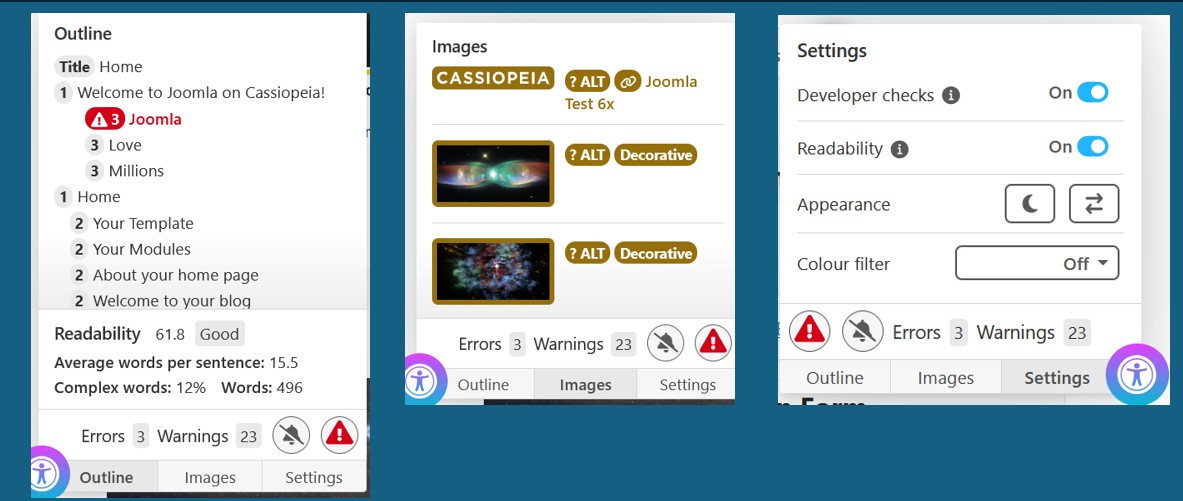
Outline shows all your headings
Images gives an overview of images and their alt-texts
Settings allow you to change the appearance of the window
If Jooa11y finds errors or warnings the number of errors is indicated. You can ignore the button and write your article until you are ready for a test. Then open the checker. Jooa11y shows all issues and warnings in the right place, errors with a danger triangle, warnings with a yellow question mark like in this example:

The example comes from Blind Spots of Accessibility Testing Tools - Colour Contrast.
There tools ware compared if they can find errors in colour contrast. All tools find the same error, all tools provide warnings for suspicious definitions and all tools have the same blind spots with false negative results.
But compared with all the tools, jooa11y is my favourite. Why do I like Jooa11y?
- It is fast and always here. No need call a tool
- I can close it if not needed
- It does not destroy the layout of my page
- It finds many issues and warnings and provides good explanations
- I see warnings at once and can dismiss them if the warning is not relevant in my context
- It integrates a heading map
- It can check readability
- I can exclude areas from checks
- I can add own rules

This image shows the same screen, checked with WAVE. The error is found but not the suspicious background-image in the yellow box.

This image shows the same screen, checked by IBM Accessibility Checker. The contrast error is found and the opacity in the light green box (this is good), but not the suspicious background-image in the yellow box. Interpreting the messages is not easy.
We see that different tools find different issues, but for a first quick check, Jooa11y is unbeatable.
Pro-Tip - user access level
You want to use Jooa11y on an active site? Make an access level for example “jooa11y”. Connect all user groups who can edit in the frontend. Set the access level of the joo a11y plugin to “joo a11y”. Then the plugin is activated for users who are allowed to edit articles in the frontend, but it is invisible for normal users of your site.
Conclusion
Take advantage of this superhero in Joomla.It cannot identify all possible issues (no tool can do this) but will protect your site from common errors like underlined text which is not a link, from images without alt-text and most colour contrast errors.

Comments