The Joomla! ® Community Magazine

Tutorial - The Missing Link to Intro Images in Joomla 2.5

Written by Scott Greenwald | Thursday, 01 November 2012 00:00 | Published in 2012 November
Level of Difficulty:Beginner The new "Images and Links" parameter was a great addition to Joomla 2.5. But have you ever wondered why the blog intro image doesn't link to the full article? In this simple tutorial, I'll show you how to modify your template to add that missing link.

Who loves clicking on pictures? I know I do. So, when it comes to our blog layouts, why is it that our intro image doesn't link to the full article? Sure, we have a title link and read more link, but sometimes that's not enough for image-clickers like us. Maybe this option will be added in a future Joomla update. Until then, you can follow the steps below to add some link love to your template's intro images.

For this example, we'll be looking at the Category Blog layout. I'm using Joomla's default Beez 2 template and the Australian Parks demo site, but these steps should apply for most Joomla 2.5 templates out there.

The Joomla Category Blog Layout

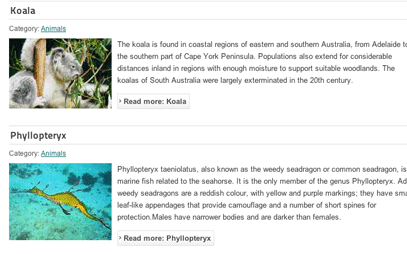
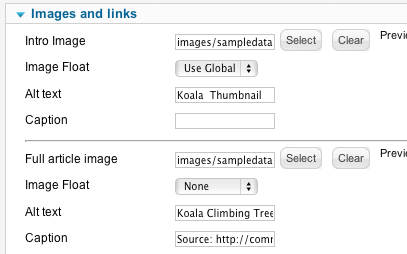
This is our standard category blog layout. I'm using the article's Images and Links parameter to add these intro images, and align them to the left of the text.
   

Create a template override

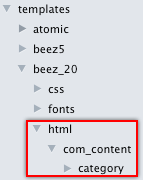
Step 1: Locate the html folder inside your template, templates/beez_20/html. Next, create these two empty folders inside: com_content/category. (With category nested inside of com_content) If your template is missing the html folder, then create that too.
Step2: Locate this file from the Joomla core: /components/com_content/views/category/tmpl/blog_item.php
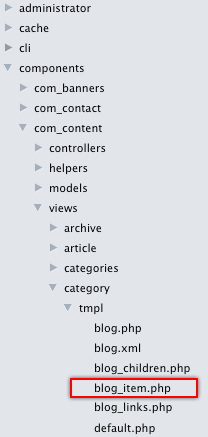
Step3: Copy blog_item.php to your template's category folder that you created in Step 1
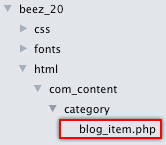
Now, we can safely edit the blog layout from within the scope of our template, without worrying about the changes being overwritten when you update Joomla*. If these files already exist in your template, then there is no need to copy them from the system files. Just proceed with the next steps below.

Adding the link

Beginner's note: Don't worry if you're not familiar with HTML or PHP. The basic concept is that we're just wrapping a link tag (anchor) around the intro image to make the image clickable. Then we will add some php code inside of the link (the href) to make it work.

Back to the template override file we created from step 3 above, blog_item.php. In this file, search for "image_intro". You're looking for the following block of code, around line 130:

<img
<?php if ($images->image_intro_caption):
echo 'class="caption"'.' title="' .htmlspecialchars($images->image_intro_caption) .'"';
endif; ?>
src="/<?php echo htmlspecialchars($images->image_intro); ?>" alt="<?php echo htmlspecialchars($images->image_intro_alt); ?>"/>

The code above is the default code for our intro image. Now, we can wrap that image in an HTML anchor tag. For the link, we can use the same PHP snippet found in the title link (around line 28). The final code should look like this:

<a href="/<?php echo JRoute::_(ContentHelperRoute::getArticleRoute($this->item->slug, $this->item->catid)); ?>"><img
<?php if ($images->image_intro_caption):
echo 'class="caption"'.' title="' .htmlspecialchars($images->image_intro_caption) .'"';
endif; ?>
src="/<?php echo htmlspecialchars($images->image_intro); ?>" alt="<?php echo htmlspecialchars($images->image_intro_alt); ?>"/>
</a>

And that's all there is to it! Your intro images should now link to the full article, just like the Read More link and article title does.

Notice that Joomla's Featured blog layouts use a different template file than the Category blog layouts, so they'll require a separate template override. You would copy the system file found here: components/com_content/views/article/featured/default_item.php, and then perform the same steps as above to create the link.

* IMPORTANT: Always make a backup of your changes so you can add them back if they get overwritten by future Joomla or template updates. 

For a general overview on using Images and Links in Joomla 2.5, check out this tutorial video I posted when the feature was first released.

Are you using Joomla's intro image feature an interesting way? Show off your site in the comments below.

Read 80913 times
Tagged under Designers, English
Scott Greenwald

Scott Greenwald

Scott Greenwald runs the popular video tutorial site JoomlaDirect.com. He's an experienced front-end developer with roots in design and user interaction. Scott works as a fulltime freelancer from his home office in Tokyo Japan, where he specializes in custom Joomla development and template design for clients all over the world.

Leave a comment

Make sure you enter the (*) required information where indicated.

[b] [i] [u] [s] [url] [quote] [code] [img]   

Comments (29)

  • avatar
    • 0
    • 0
    Josh Lewis

    Agreed that clicky images are important. I prefer to click a photo as a link than a text link. Most logos on websites do this. ;-)

  • avatar
    • 0
    • 0
    Aleksandar Stojanov

    I think it won't work with the extra "/" before eople prefer to click on images instead of text links such as titles. Nice work and I'm starting to use it now thanx to you

  • avatar
    • 0
    • 0
    Andrew

    Hi, Can you tell me which extra / i have to remove to make this work ?

    cheers,

    Andrew

  • avatar
    • 0
    • 0
    Amit Patekar

    Awesome simple to understand tutorial. I have spent some hours doing the same in the past and was wondering why this is not in core feature. Any ways thank you very much for the tutorial Scott Greenwald.

  • avatar
    • 1
    • 0
    brutalbliss

    Thanks for making this a breeze! FYI: I too had to remove the extra "/" in your suggestion for my site to properly link to the article. So I ended up with this as an example:

    Code:
    slug, $this->item->catid)); ?>">image_intro_caption) .'"';
    endif; ?>
    src="image_intro); ?>" alt="image_intro_alt); ?>"/>


    Once I used this format, worked like a charm! :D

  • avatar
    • 0
    • 0
    Lang Thang

    Thanks a million for your great help! It seems I'm getting smarter each day because of people like you on the net. Only one thing, I changed from your above code is to remove the "/" from

  • avatar
    • 0
    • 0
    Andrew

    Hi , i think i did exactly what is requited but when i click on the images i get that index.php is not found. Am i missing something ?

    thanks,

    Andrew

  • avatar
    • 0
    • 0
    mamke

    EXCELLENT tutorial! Thank you! And more thanks for showing how to do it proper with the template override!

  • avatar
    • 0
    • 0
    iyod

    This work just fine

    Code:
    slug, $this->item->catid)); ?>">
    image_intro_caption) .'"';
    endif; ?>
    src="image_intro); ?>" alt="image_intro_alt); ?>"/>


    Thnx

  • avatar
    • 0
    • 0
    iyod

    This works. Thnx.

  • avatar
    • 0
    • 0
    Andrew Schiewe

    Hi there , sorry to ask you again but when the people below comment about the extra / which needs to be removed for the code to work correctly can you actually me what to remove exactly ?

    cheers,

    Andrew

  • avatar
    • 0
    • 0
    Scott Greenwald

    Hi Andrew. I think they mean the "/" before the php echo tags. But depending on how your site is setup, I understand if you may need to remove the slash. I'd suggest trying it with and without the slash to see which version works for you.

  • avatar
    • 0
    • 0
    Che Linh Nguyen

    Great tutorial, Thnk

  • avatar
    • 0
    • 0
    Luciano Marcelli

    Really intrersting.
    But what should the code be if I wanted to link the intro image to a larger version of itself, instead of getting the full article?
    Many thanks.

  • avatar
    • 0
    • 0
    Melanie Jones

    I followed the tutorial and had to remove the */* but it also turns the image caption into a link. Is there anyway to change this back to text?

  • avatar
    • 0
    • 0
    Sertaç Önal

    Hi,
    Firstly, Thanks so much for this article...
    It is working like a magic :)

    But I need to use this in Featured Articles.. I tried it already but it was just working for Category Block... Is it possible to use it in Featured Articles ??

  • avatar
    • 0
    • 0
    Sertaç Önal

    I'm so sorry i missed the last part of article..
    Now i can use it in featured articles too...
    thanks a lot...

  • avatar
    • 0
    • 0
    hang xach tay

    Good thank you for share

  • avatar
    • 0
    • 0
    Izen

    thank you very much for the hint, Scott!!!
    just in case somebody is using a template where the html-> com_content->category-> blog_item.php already exists and refers to another documents (like in the yoo_theme templates) try template/name_of_the_template/layouts/category/blog_item.php and change it there.

  • avatar
    • 0
    • 0
    AlexxJ

    thanxx for the code ... was faster than figuring it out by myself :)
    this is definitely a missing thing for Jommal 3.1 CORE !

  • avatar
    • 0
    • 0
    Dave

    I understand how to use the override procedure for default views so as not to hack the core joomla code.
    What I did was add another field to the article.xml file for the intro text called "target" and set it as a URL type field with URL validation. This file is in "administrator/components/com_content/models/forms".

    But I did not quite understand how to properly override "article.xml" so as not to touch the core joomla code.

    My custom template is set up like this: Template_Name/html/com_content/category

    That is the folder where "blog_item.php exists.

    So I can update joomla without having to reimplement "article.xml" is there a similar way to deal with this situation?

    thanks,

    Dave

  • avatar
    • 0
    • 0
    Marcel

    Hi thanks for the tutorial. However I can't get it to work. I've tried pretty much everything and still the links does not appear to be working. I tried removing the / but that did not work. Anything else I could try?

  • avatar
    • 0
    • 0
    Hans

    Hi, thank you for this great little tutorial.
    It works as well in Joomla 3.02. (without the "/" before the pho echo tag)

  • avatar
    • 0
    • 0
    Alexander Holladay

    Came across this by happenstance, you have an etra slash in your code i think

  • avatar
    • 0
    • 0
    Rowan

    Works perfectly. Thanks!!!!

  • avatar
    • 0
    • 0
    Alex

    Great tutorial. Would this then work with the 'full article image'? I would like to add a link to the full article image when you are viewing the full article. Would we use the same code and just target the 'full article'?

  • avatar
    • 0
    • 0
    Joomla Development Services

    I think this is the best tutorial info regarding joomla programmer; I really like to read it; and I hope it’s very helpful and useful to me, Thanks for sharing to all; great going.

  • avatar
    • 0
    • 0
    Avni

    you can simply click on your image then click on link symbol above the article attributes a window will pop up then give the URL of article which you want to show on the click of your image. In the URL give the path of localhost because it is used as external link

  • avatar
    • 0
    • 0
    Sorky

    Hello,

    I already have template override by Artisteer. Can you please provide me solution how to change this code to have blog intro images clickable?

    Code:
    params);

    $article = $component->article('category', $this->item, $this->item->params);


    $params = $article->getArticleViewParameters();

    if (strlen($article->title)) {

    $params['header-text'] = $this->escape($article->title);

    if (strlen($article->titleLink))

    $params['header-link'] = $article->titleLink;

    }

    // Change the order of ""if"" statements to change the order of article metadata header items.
    if (strlen($article->created))

    $params['metadata-header-icons'][] = "" . $article->createdDateInfo($article->created) . "";

    if (strlen($article->modified))

    $params['metadata-header-icons'][] = "" . $article->modifiedDateInfo($article->modified) . "";

    if (strlen($article->published))

    $params['metadata-header-icons'][] = "" . $article->publishedDateInfo($article->published) . "";

    if (strlen($article->hits))

    $params['metadata-header-icons'][] = $article->hitsInfo($article->hits);

    // Build article content

    $content = '';

    if (!$article->introVisible)

    $content .= $article->event('afterDisplayTitle');

    $content .= $article->event('beforeDisplayContent');

    if (strlen($article->images['intro']['image']))

    $content .= $article->image($article->images['intro']);

    $content .= $article->intro(artxBalanceTags($article->intro));

    if (strlen($article->readmore))

    $content .= $article->readmore($article->readmore, $article->readmoreLink);

    $content .= $article->event('afterDisplayContent');

    $params['content'] = $content;


    // Render article

    echo $article->article($params);

Language Switcher

Issue NOV 2012

Recommend us on Google+