Display Different Menu Items for Registered and Non-Registered Users Using MetaMod

This tutorial is aimed at Joomla users who have grasped the basics and are just starting to require customization that needs something more than the standard Joomla toolbox.
It is a common requirement to want to display different menu options to registered and unregistered visitors.
Take for example the following menu structure as it would be displayed for public users, it contains a horizontal menu bar which includes the menu item 'Registration & Login':

When a visitor logs-in the menu is adjusted to include two extra menu options 'Payment' and 'Logout' that are only applicable to registered visitors.

The displaying of menu items to registered visitors is achieved by simply setting the 'Payment' and 'Logout' menu option's Access Level to 'Registered' so that Public users do not see menus that are not applicable to them.

However, for registered users, once they have logged in, the 'Registration & Login' menu option is no longer required and it would therefore be better if the 'Register & Login' menu option was not displayed.
It would be simple if Joomla, in addition to the Access Levels 'Registered' and 'Public', had a 'Public Only' option but it does not.
Those using Joomla 1.6 and higher are able to configure the ACL to hide the 'Registration & Login' menu option, but that option isn't available for those using Joomla 1.5.
There are various solutions and workarounds, some that rely on hacking the templates or CSS files, which may at first seem like a quick and simple solution, but may prove difficult to maintain. The less customizing of the templates and CSS the better. Too often a template can be customized, only for some the template or CSS files to be updated some months later and the customization forgotten about and suddenly a website that was working is no longer working and no one knows why.
A popular method to resolving this problem is by using the MetaMod extension, which is an easier solution to maintain and can also be used for more sophisticated configurations such as allowing the menus to be configured to a particular language, the time of day and location.
This article only demonstrates using MetaMod to display different menus to visitors who are in 'public' and 'Registered' mode.
For the example a horizontal menu is being used, but the instructions should be easily adapted to using any type of menu in any position.
The following assumptions are being made:
- the reader has a basic understanding of free Joomla hosting and knows how to download and install extensions.
- the website has been developed sufficiently to have a single menu that needs to be customized for the two login states.
Although in this case we are concentrating on catering to two different login states, it would be a good grounding for other types of customizations.
MetaMod method
Preparation
If the MetaMod module is not currently installed, then locate, navigate and download the MetaMod extension.
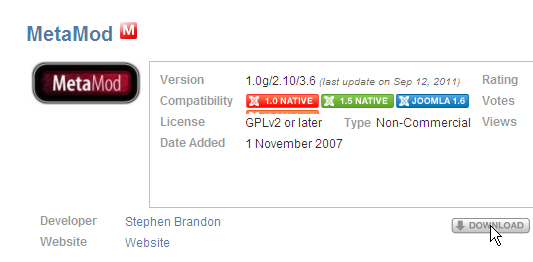
Use the Joomla install to include MetaMod, and then enable the MetaMod module.
It would be advisable to make a backup prior to starting Step 1.
Step 1
Assuming that the website has been developed initially using a single menu, select the Menu Manager option, and copy the existing full menu.
In this example we are using the Top Menu.
Select the Top Menu and click on the Copy button and confirm the copy.
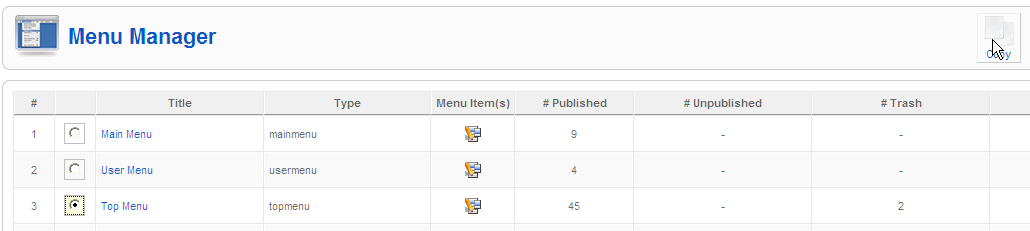
We are going to make two copies of the Top Menu.
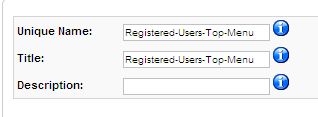
Make one copy and give it a name that reflects the customization you require, in this case we will call it Public-Access-Top-Menu because we want this menu to reflect the non-logged in visitor's menu options.

We are now going to repeat the process and make a second copy and give it a suitable name; in this case we will call it 'Registered-Users-Top-Menu'.
Step 2
We now want to customize each of the copied menus, for example the 'Public-Access-Top-Menu' we will remove the 'Payment' and 'Logout' menu options.
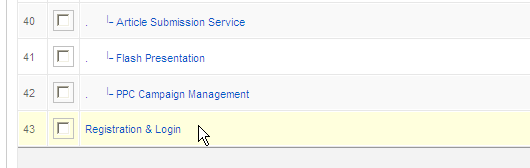
We will then customize the second menu, for this example the 'Registered-User-Top-Menu', and remove the 'Registration & Login' menu item and leave the 'Payment' and 'Logout' menu options.
The access level can be left as Registered or made Public, when we have finished it won't matter because we won't be controlling the menu option using the Access Level.

Step 3
We now go to the Module Manager.
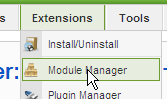
At this point we have three menu modules all competing for the same space so the first thing we will do is turn off the display for the original menu (Top Menu) that we no longer need, in this case by editing the Top Menu.
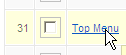
We can either change the Menu Assignment to 'None' so that the menu is no longer displayed, or alternatively we could just disable the whole menu as we won't be using it.

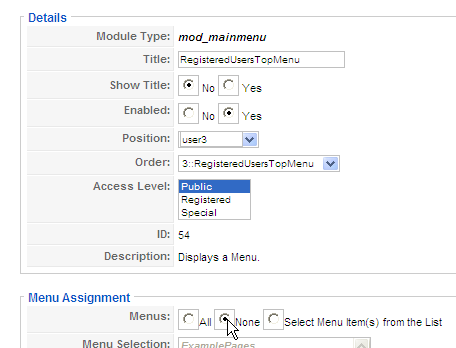
Although we want to display the other two menus, we don't want to display them at the same time, but only display them when we need to, so we will edit the first copied menu module, i.e. in this case 'Public-Access-Top-Menu'.
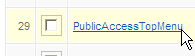
And set the Show Title to 'No'
Set Enabled to 'Yes'
Set the position to the same as the 'Top Menu' that was copied, in this case 'user3'
Set the access level to 'Public'
Set the Menu Assignment to 'None'
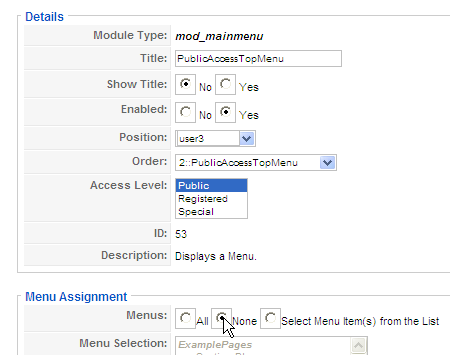
(The menu assignment is set to 'none' because we don’t want the menu displayed until we have checked if the user is unregistered. This check will be performed by the MetaMod module that we have downloaded, which will control if the menu is displayed or not).
We do the same for the second menu we copied, i.e. Registered-Users-Top-Menu.
Configure the settings the same as 'Public-Access-Top-Menu'.
Step 4
We now have turned off the display for all the menu configurations. At this stage, if we were to preview the website, no top menu would be displayed.
We now need to edit the MetaMod module so we can control which menu gets displayed, and when.
Edit the MetaMod module and give the MetaMod module a suitable title.
In this case we have given it the title 'MetaModPublicRegistered'.
Set the Show Title to 'No' and the menu assignment to 'All' and the position to the same as the menus – in this case 'user3'.
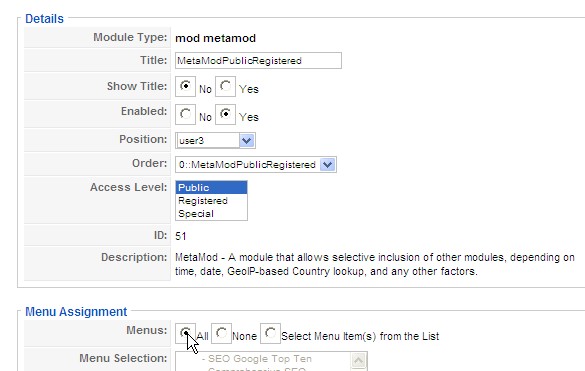
On the right of the MetaMod configuration, display set the 'Style for included modules' to 'Naked' – if you don’t do this the top menu will probably be displayed lower than it should be.

In the PHP section, enter the PHP code to display the correct menus.
The ID's of the Public-Access-Top-Menu and Registered-Users-Top-Menu will be shown above the PHP code box. If they are not then it is probably because they have not been enabled.
For this example, if the user is not registered we want to display the menu ID 53 (PublicAccessTopMenu), but if they are registered we want to display the menu 54 (RegisteredUsersTopMenu).
We enter the PHP code to do this, and there are a number of different statements that will work, but we have used the 'if else if' statement.
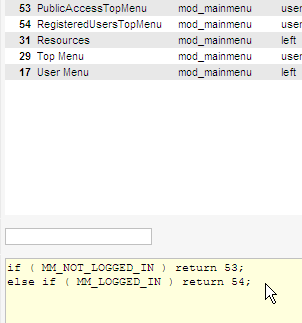
Save the MetaMod settings.
Step 5
We have now finished configuring everything we need, so now all we need to do is check that the configuration works.
For users who are not registered, if the configuration is correct, they will see the menu that includes the 'Registration & Login' menu and excludes the 'Payment' and 'Logout' menu options.

Once registered, the MetaMod should switch the menu modules and show the menu configuration that includes the 'Payment' and 'Logout' menu options, but excludes the 'Registration and Login' menu option.

Using the MetaMod solution does require that at least two menus be maintained, but providing a single menu is used initially, it is fairly easy to maintain a master menu that is then not active, but can be used to easily copy, and then the copied menus, customized.
About the author

By accepting you will be accessing a service provided by a third-party external to https://magazine.joomla.org/
Comments